
Pinwheel Caregiver
Pinwheel.comParenting
3.5110.00 Reviews
- Version
- 1.7.9
- Installs
- 10.00K
- Age Rating
- Everyone
Screenshots
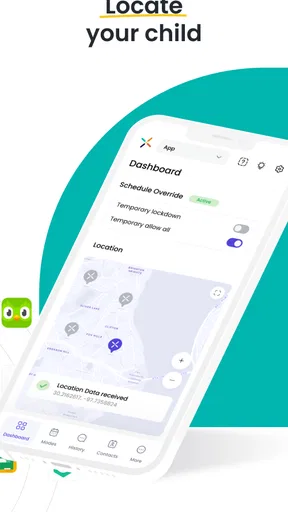
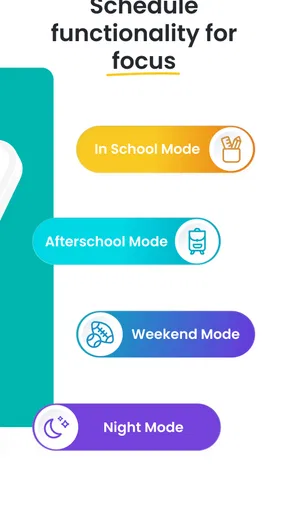
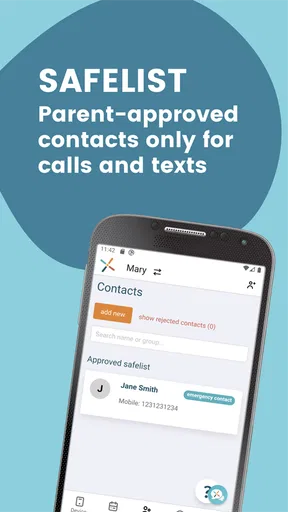
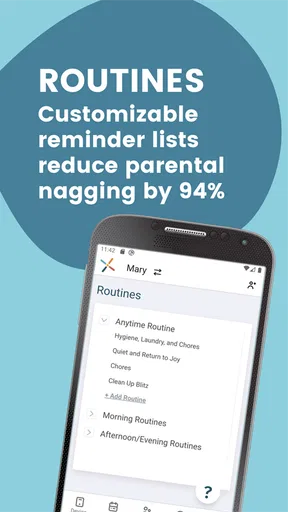
Our Review of Pinwheel Caregiver
 Analysis by Appyee
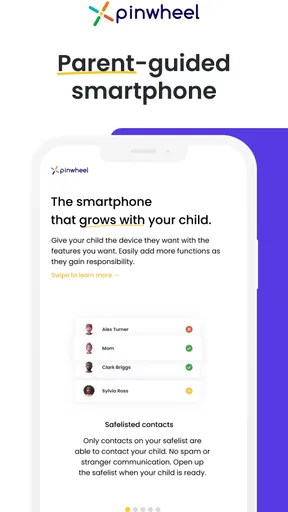
Managing a child’s smartphone can become surprisingly complicated once the phone is being used for school, family communication, travel, and everyday independence. Pinwheel Caregiver is designed to make that responsibility more manageable from the adult’s side. I found it most useful as a control point for a child’s Pinwheel smartphone rather than as a general-purpose parenting app. That distinction matters: its value depends on already using the Pinwheel phone ecosystem.
In the parenting category, the app takes a practical approach. Instead of trying to replace every family rule with a large collection of dashboards, it focuses on helping a caregiver manage the child’s device. Pinwheel.com develops the app, which is free and rated for Everyone. The current release is version 1.7.9, and it runs on Android 7.0 or later. The product has passed the early adoption stage, with over ten thousand installs, while its average sits at 3.5 from more than two hundred ratings.
How the caregiver experience feels in daily use
I find the caregiver experience most useful when it gives adults a clear place to handle a child’s phone without turning every adjustment into a hands-on interruption. That separation can make shared responsibility easier, but it works best when everyone knows who is managing the device and when. A simple family routine is what turns the portal from a convenient option into a dependable part of everyday care.
Readability and navigation matter more than a crowded feature list
My first impression is that the app’s usefulness comes from reducing the need to handle the child’s phone directly. A caregiver can approach the child’s device as something to manage remotely through a dedicated portal, which is a more comfortable arrangement when the phone is in a backpack, at school, or with another trusted adult. The basic concept is easy to understand: the adult uses the caregiver app, while the child uses the Pinwheel smartphone.
That separation can be especially helpful for relatives who assist with childcare but do not want to learn every setting on the child’s handset. A grandparent, babysitter, or co-parent can use the same general management idea without taking possession of the child’s phone. In my view, this is one of the strongest reasons to choose a purpose-built caregiver portal over repeatedly changing settings on the phone itself.
The experience is clearest when I approach it with one task in mind. For example, I might open it because I need to manage the child’s phone before a school day, not because I want to browse a feed of family activity. That task-oriented mindset makes the app easier to understand, particularly for adults who are not confident with smartphone administration.
At the same time, a remote management app creates a layer between the caregiver and the result. If a setting does not behave as expected, I have to check the portal, the child’s phone, and the connection between them rather than simply looking at one screen. That is a normal trade-off for remote control, but it can feel less immediate than changing an option directly on a device.
The most important practical habit is to test a change before relying on it in an urgent situation. I would set up the phone at home, confirm that the child sees the intended result, and only then depend on the arrangement for school, travel, or an overnight stay. This is not a criticism of one particular control; it is good practice whenever a caregiver is managing another device from a separate app.
Different abilities and reading comfort
For adults with different levels of digital confidence, the dedicated purpose of Pinwheel Caregiver is a benefit. The app is not asking a caregiver to understand the entire Android settings system before taking responsibility for a child’s phone. That narrower role can make the process less intimidating for someone who is comfortable with ordinary phone use but less comfortable with technical configuration.
Readability also depends on the person using the portal. A caregiver with limited vision may prefer a larger system text setting, stronger contrast, or a larger display, provided those options are available through the device and operating system. I would not assume that every screen will automatically become comfortable for every reader. Instead, I would check the app personally and adjust the phone’s display settings before handing the task to another caregiver.
For someone with dyslexia, attention difficulties, or limited familiarity with technical vocabulary, the best workflow is to keep a short written routine beside the phone: open the caregiver portal, choose the child’s device, make one change, and confirm the result. That sounds simple, but it prevents the common mistake of changing several things at once and then not knowing which action caused a problem.
Caregivers who use screen readers or alternative input methods should evaluate the actual controls on their own device before committing to the app as their only management route. I would look for clearly labeled controls, sensible focus order, and buttons that can be reached without precise tapping. The app’s age rating and general parenting purpose do not, by themselves, guarantee that every interaction will suit every assistive-technology setup.
Motor and sensory considerations during setup
Remote management can reduce a particular kind of physical effort: the adult does not always need to take the child’s phone, unlock it, and navigate through several menus. That is useful for a caregiver with limited reach, reduced dexterity, or pain in the hands. Managing the device from the adult’s own phone may be easier than repeatedly handling a smaller handset.
There is still a precision requirement. A caregiver portal involves selecting the correct child or device and activating the correct control. If tapping accurately is difficult, I would use the largest comfortable display available and make changes when there is time to review them. The risk is not just inconvenience; selecting the wrong device or option could affect the child’s access at an inconvenient moment.
Sensory needs deserve the same careful approach. A child who becomes distressed by unexpected changes may need advance notice before the caregiver adjusts the phone. I would explain what is changing, why it is changing, and when the child can expect the new arrangement to begin. The portal can support the adult’s management role, but it cannot replace a calm conversation with the child.
For children who depend on particular communication or organizational routines, I would avoid making last-minute changes unless there is a genuine safety reason. A phone may be more than a source of entertainment; it can be the child’s way to contact family, follow a schedule, or feel secure during a transition. The caregiver app is most helpful when it supports a predictable plan rather than creating surprises.
Situational access: school, travel, and shared caregiving
A realistic example is a school morning. A parent may want the child’s phone arranged before the child leaves home, while the child is already rushing to get dressed and pack a bag. Using the caregiver portal lets the adult handle the management task separately, without turning the child’s phone into a negotiation at the door. I would still check the result before departure, especially if the child needs a reliable way to contact home.
Travel is another situation where the separation can help. A caregiver may need to manage a child’s phone while the child is with a group, staying with relatives, or moving through an unfamiliar place. The portal gives the adult a dedicated place to work from, but I would not treat remote access as a substitute for a backup plan. The child should know who to contact if the phone behaves unexpectedly, and another trusted adult should understand the basic arrangement when appropriate.
Shared caregiving is where the app’s concept makes the most sense to me. Families often divide responsibility between parents, grandparents, and other adults. A single caregiver may not be available every day, so a repeatable management process is more useful than one person’s memory of complicated handset settings. Before sharing responsibility, I would agree on who is allowed to make changes and how those changes will be communicated.
This is also where clarity becomes essential for adults with different communication styles or schedules. One caregiver might manage the phone during school hours, while another handles evenings. Without a simple family agreement, the portal could become a source of confusion: two adults may make different decisions without realizing it. The app can centralize management, but the family still needs a clear human process around it.
Where it differs from ordinary parental-control alternatives
Many families begin with the tools already built into Android or iOS. Those options can be sensible when parents want to manage a child’s existing mainstream phone, especially if the family already understands the operating system and does not need a separate phone ecosystem. Pinwheel Caregiver is better suited to a family that has deliberately chosen a Pinwheel smartphone and wants the caregiver role to be central.
That difference changes the buying decision. I would not install this app expecting it to manage any child’s phone. Its purpose is tied to the Pinwheel device, so families using another handset should look at the controls made for that platform instead. Choosing the wrong ecosystem creates more friction than it solves.
Compared with managing settings directly on the child’s phone, the portal is more convenient for adults who need distance and consistency. Compared with broad family-safety suites, its narrower focus may be easier to learn, but it may feel limited to parents who want one app to supervise several brands of devices. The right choice depends less on the number of available controls and more on whether the family wants Pinwheel’s caregiver-centered setup.
I also see an important difference from informal rules such as “put the phone away at dinner.” A portal can help a caregiver manage the device, but it does not create trust by itself. Children with different developmental levels may need different explanations, and older children may respond better when expectations are discussed rather than imposed without warning.
Remaining barriers before you rely on it
The first barrier is ecosystem dependence. If your child does not use a Pinwheel smartphone, this is not the right tool to investigate first. The app’s name and purpose make that relationship clear, but it is still easy to download a parenting app before checking whether the associated phone is required. I would confirm the family’s hardware plan before spending time on setup.
The second barrier is the learning curve created by remote management. Even a straightforward portal can feel abstract when the adult changes something on one screen and waits for the child’s phone to reflect it. I recommend making the first setup during a calm period, keeping the child nearby, and confirming each important result. This is particularly valuable for caregivers who have difficulty remembering multi-step instructions.
A third barrier is responsibility. A caregiver portal can make it easier to change a child’s phone, which means it can also make impulsive changes easier. I would keep the number of people with management responsibility as small as practical and agree on a shared routine. Families should also explain changes to children in language they understand, especially when the phone is part of their communication or independence.
There is a further accessibility question that each household must answer through direct use. A person who relies on magnification, voice control, switch access, or very large touch targets should test the complete workflow rather than judging the app by its store summary. The same applies to a caregiver who experiences sensory overload: a simple portal may help, but only if its presentation and interaction style are comfortable on that person’s device.
Performance expectations should be realistic as well. A caregiver may assume that a remote action is immediate, but phones depend on their own state and communication conditions. I would never use a last-second change as the only plan for a safety-critical moment. A child should retain an agreed way to reach help, and the adult should know what to do if the expected change is delayed.
Who will appreciate it most
I would recommend Pinwheel Caregiver to parents who have intentionally selected a Pinwheel smartphone and want to manage it from an adult-facing app. It is also a good fit for families where several trusted adults share responsibility, provided they agree on roles. The focused design can be less overwhelming than a large monitoring platform for someone who wants a practical way to manage one child’s device.
It may also suit caregivers who want to preserve a child’s physical access to their own phone while keeping management tasks in the adult’s hands. That separation can support gradual independence: the child has a device for communication and daily routines, while the caregiver retains an organized way to make adjustments when needed.
I would be more cautious about recommending it to families who use mixed phone brands and expect one universal dashboard. I would also steer away from it for parents who want detailed supervision across every device in the household. In those cases, the built-in family controls for the relevant operating system, or a broader cross-platform service, may be a better match.
My inclusive verdict
After looking at the app through the needs of different caregivers and children, I see Pinwheel Caregiver as a focused tool rather than a complete answer to family technology. Its strongest quality is the clear separation between the adult’s management space and the child’s Pinwheel smartphone. That can reduce unnecessary handling, support shared caregiving, and make everyday preparation less stressful.
Its limitations are equally important. The experience depends on the Pinwheel ecosystem, remote changes need sensible testing, and accessibility cannot be assumed simply because the app is intended for families. Caregivers who need larger text, alternative input, or a low-stimulation workflow should try the real controls on their own device before making it central to their routine.
The free price makes it easy to explore, and the Everyone rating makes the intended audience broad, but those labels do not decide whether it fits your household. I would choose it when the family already uses a Pinwheel smartphone and values a dedicated caregiver portal. I would skip it when the child uses another phone or when the household needs a universal, highly detailed monitoring system.
Overall, I think the app works best when it is treated as part of a thoughtful family routine: test changes early, explain them clearly, keep responsibilities organized, and preserve a backup communication plan. Used that way, Pinwheel Caregiver can make device management more approachable for many adults, including caregivers who are less confident with technology. It is not a replacement for conversation or judgment, but it is a sensible companion for families committed to the Pinwheel approach.
Verdict
Strengths of Pinwheel Caregiver
- Simple interface makes essential caregiver tasks easy to find.
- Medication and care reminders can help maintain daily routines.
- Useful for coordinating support among family members and caregivers.
- Remote updates can reduce the need for frequent phone calls.
- Designed with caregiver needs in mind rather than general social use.
Limitations of Pinwheel Caregiver
- Some features may require a compatible Pinwheel device or account.
- Setup can take time when adding patients, schedules, and care details.
- The app’s usefulness depends on caregivers keeping information updated.
- Notifications may become overwhelming with many reminders enabled.
- Availability and features may vary by region or subscription plan.
Similar Picks in This Category
View All
Family Space
Motorola Mobility LLC.3.9

شرطة الأطفال - مكالمة وهمية
Oub Apps4.1

Findmykids: Parental Control
LETEM LTD4.6

Pregnancy + | Tracker App
Philips Electronics UK Limited4.8

Policía de niños - para padres
Kids police4.7

Pregnancy App
Amila4.9
Frequently Asked Questions
What is Pinwheel Caregiver, and who is it designed for?
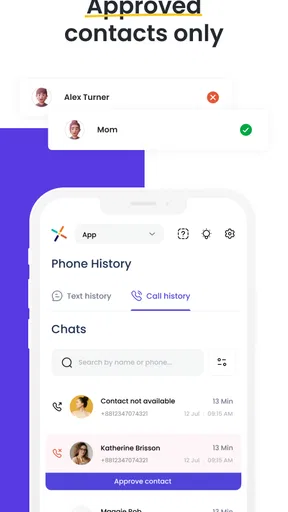
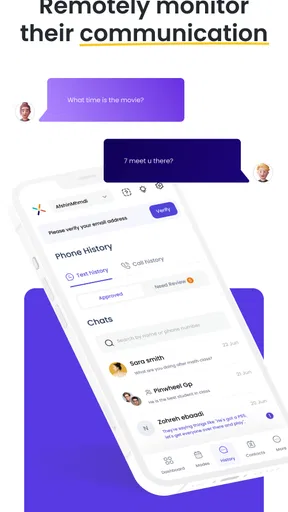
Pinwheel Caregiver is a companion service for families using Pinwheel phones and devices. It is designed primarily for parents, guardians, and other trusted caregivers who want to help manage a child’s phone experience remotely. Depending on the device and subscription, caregivers may be able to review activity, manage contacts and applications, adjust settings, and support safer communication without needing constant physical access to the phone.
Do I need a Pinwheel phone or subscription to use Pinwheel Caregiver?
In most cases, Pinwheel Caregiver is intended to work with a compatible Pinwheel device and an associated Pinwheel service plan. The app is not generally useful as a standalone parental-control tool for phones from unrelated manufacturers. Before downloading, check the current compatibility requirements, account rules, and subscription details, because available features may vary by device model, operating system, plan, and the caregiver’s account permissions.
What can caregivers manage through the Pinwheel Caregiver app?
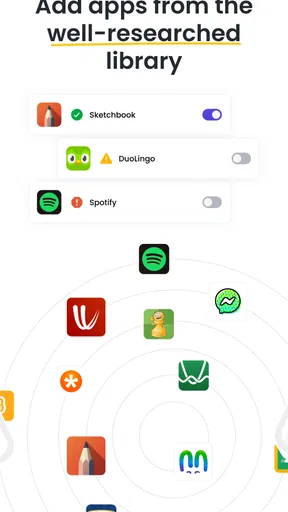
The exact controls depend on the connected Pinwheel device and the plan, but the service is built around remote supervision and phone management. Caregivers may be able to approve or restrict contacts, manage applications, review certain activity information, configure communication settings, and make changes to the child’s device remotely. It is best viewed as a structured support and safety tool rather than a replacement for conversations about responsible phone use.
Does Pinwheel Caregiver monitor everything on a child’s phone?
No app should be assumed to provide unlimited access to every message, call, file, or activity on a device. Pinwheel Caregiver’s monitoring and management options are controlled by the Pinwheel platform, device configuration, account permissions, and applicable privacy settings. Some information may not be visible, and features can change over time. Families should review the service’s privacy documentation and explain the monitoring rules clearly to the child before enabling supervision.
Is Pinwheel Caregiver easy to set up and use?
Setup is usually straightforward, but it requires the caregiver to create or access a Pinwheel account, connect the compatible child device, and configure permissions and safety preferences. The experience is most effective when the phone has a reliable internet connection and both devices use current software. During testing, new users should allow time to understand the dashboard, notification behavior, and available controls rather than expecting every setting to be self-explanatory immediately.
